Short answer
An E-Ink frame has a fixed pixel grid with a fixed shape, so any photo whose shape differs must either be cropped to fill the screen or shown whole with bands around it. A 3:2 camera photo on a 4:3 panel loses about 11% of its width when filled. A landscape photo forced onto a portrait panel loses nearly half of the picture. Fix it before upload: crop each file to the panel’s exact ratio yourself, choose deliberately between fit and fill, and test that the frame and app genuinely honour landscape orientation before you rely on it.
Key facts
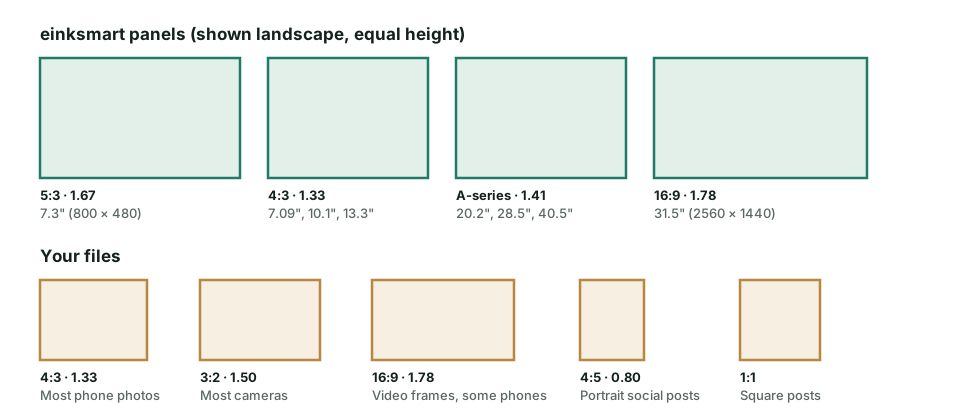
- Common E-Ink frame panels are 4:3 (1.33), ISO A-series (1.41), 5:3 (1.67) or 16:9 (1.78). Phone photos are usually 4:3; camera photos are usually 3:2.
- The share of a photo you keep when filling a screen is simply the smaller ratio divided by the larger one.
- A landscape 4:3 photo filled onto a portrait 3:4 panel keeps 56.3% of the picture. A 3:2 photo keeps 50%.
- Rotating a frame on the wall does not rotate the pixel grid. The software must rotate the image, and that is worth testing before purchase.
- On paper-white ePaper, white bands from “fit” mode look like a mat, not like black bars on a TV.
Why your photo gets cropped
Every panel has a resolution, and the resolution fixes its shape. A 13.3-inch colour E-Ink panel at 1600 × 1200 pixels is exactly 4:3. Your photograph has its own shape: a phone camera usually records 4:3, most interchangeable-lens cameras record 3:2, video stills are 16:9, and portrait social posts are often 4:5. When the two shapes differ, the frame software has only two honest options. It can enlarge the image until the screen is full and cut away what spills over, or it can shrink the image until it all fits and leave empty bands.
There is no third option that keeps every pixel and fills the screen, other than stretching the image, which distorts faces and buildings. A good frame app tells you which mode it is using and lets you choose. A weak one decides silently.
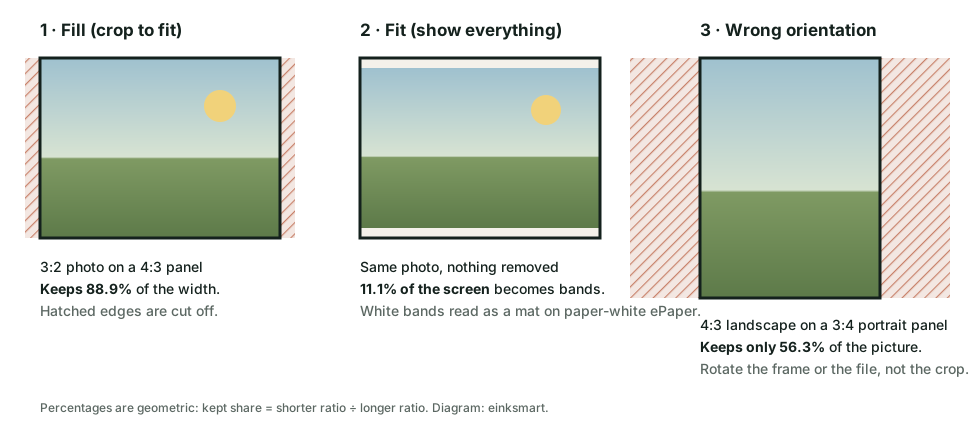
The arithmetic is simple enough to do before you buy. Write both shapes as long side divided by short side. Divide the smaller number by the larger: that is the fraction of the long edge you keep when filling the screen, or the fraction of the screen your picture uses when fitting it. A 3:2 photo (1.50) on a 4:3 panel (1.33) gives 1.33 ÷ 1.50 = 88.9%.
Panel shapes against the files you actually have
Colour E-Ink frames do not share one standard shape. Smaller frames tend to use 4:3 or 5:3 panels. Large poster formats increasingly follow ISO A-series paper, where the long side is √2 ≈ 1.414 times the short side. That ratio is why an A2 panel matches A2 paper and standard poster frames. A 16:9 panel behaves like a television screen.
The table uses the resolutions published for our own Canvas range. The viewing area is calculated from the nominal diagonal and the pixel ratio, so treat it as an approximation and confirm the active area on the datasheet before cutting a mat. The three right-hand columns show how much of each file type survives if you fill the screen in the matching orientation.
| Panel | Pixels | Ratio | Approx. viewing area | 4:3 phone photo kept | 3:2 camera photo kept | 16:9 frame kept |
|---|---|---|---|---|---|---|
| Canvas 7.3 | 800 × 480 | 5:3 (1.67) | 15.9 × 9.5 cm | 80.0% | 90.0% | 93.8% |
| Canvas 7.09 Insert | 1200 × 1600 | 3:4 (1.33) | 14.4 × 10.8 cm | 100% | 88.9% | 75.0% |
| Canvas 10.1 Insert | 1600 × 1200 | 4:3 (1.33) | 20.5 × 15.4 cm | 100% | 88.9% | 75.0% |
| Canvas 13.3 CNC / Insert | 1600 × 1200 | 4:3 (1.33) | 27.0 × 20.3 cm | 100% | 88.9% | 75.0% |
| Canvas A3 20.2 | 1530 × 2160 | A-series (1.41) | 41.9 × 29.7 cm | 94.4% | 94.1% | 79.4% |
| Canvas A2 28.5 | 2160 × 3060 | A-series (1.42) | 59.1 × 41.7 cm | 94.1% | 94.4% | 79.7% |
| Canvas 31.5 | 2560 × 1440 | 16:9 (1.78) | 69.7 × 39.2 cm | 75.0% | 84.4% | 100% |
| Canvas A1 40.5 | 3060 × 4320 | A-series (1.41) | 83.9 × 59.5 cm | 94.4% | 94.1% | 79.4% |
Two patterns stand out. A-series panels are the most forgiving general-purpose shape, because 1.41 sits between phone photos (1.33) and camera photos (1.50), so either loses only about 6%. And 4:3 panels are perfect for phone photos but noticeably crop camera photos. If most of your library comes from a camera, that 11% matters more than a small difference in diagonal size. For the full size range, including formats beyond our own, see our large E-Ink display comparison.
The orientation trap: landscape photos on a portrait frame
The most damaging crop is not a small ratio difference; it is the wrong orientation. A landscape 4:3 photo filled onto a portrait 3:4 panel keeps 56.3% of the picture. A landscape 3:2 photo keeps 50%. A 16:9 frame keeps 42%. That is not trimming the edges. It removes most of the scene.
Buyers notice. In a public comment archive from five colour E-Ink frame crowdfunding projects, captured on June 19, 2026, one buyer reported that every landscape photo uploaded was “cropped and shown in portrait mode”, even after selecting landscape in the app, and asked to return the frame. Another reported that playlists reverted to portrait after a reset. Other commenters in the same projects said both orientations were supported. That mix is the point: orientation depends on hardware, app and firmware working together, so it should be tested rather than assumed.
Rotating the frame is not enough
Turning a frame on the wall changes how you see the panel, not how the panel addresses its pixels. The pixel grid stays where it was manufactured. To show a landscape picture on a frame hung landscape, the software has to know the new orientation and rotate each image before rendering it. Some frames detect this with a sensor; others rely on a setting; some support only one orientation in practice. The physical frame also matters: one buyer found that a frame hung level in portrait but tilted in landscape, because its internal weight was uneven. Ask whether the hanging hardware supports both directions.
A two-minute orientation test
- Prepare one landscape and one portrait image with an obvious marker in each corner, such as the numbers 1 to 4.
- Upload both with the frame hung portrait. Note which corners are visible.
- Rotate the frame, change the orientation setting if there is one, and repeat.
- Restart the frame and check that the setting and playlist survive.
If a corner marker disappears without the app offering a choice, you have found the frame’s real behaviour. We include this in our digital art frame app checklist.
Fit or fill: which looks better on ePaper?
On a backlit screen, fit mode produces black bars that look like a mistake. On colour ePaper, fit mode often looks deliberate. A colour E-Ink panel’s white is paper-white, about 34% reflectance, so white bands around a fitted image read like the margin of a print. Inside a frame with a mat, they extend the mat inward. We explain why the panel white behaves this way in what colour E-Ink actually looks like.
Fill mode suits photographs with a strong subject in the middle and loose edges: landscapes, textures and most travel photos. Fit mode suits images where the edges carry meaning: paintings, posters with type, group photos and anything with a signature in the corner. For artwork, a good rule is: never fill a painting. A composition was designed to its edges, and fitting it with a soft border respects that.
| Image | Best mode | Why |
|---|---|---|
| Paintings and drawings | Fit, light band | The artist composed to the edge; bands read as a mat |
| Posters and anything with text | Fit | Cropping cuts letters, logos and margins |
| Group and family photos | Fit, or a manual crop | Automatic fill cuts the people at each end |
| Landscapes and cityscapes | Fill, manual crop | Edges are rarely essential; a full screen feels immersive |
| Close-up portraits | Fill, manual crop | Keep headroom; automatic centre crops often cut the top of the head |
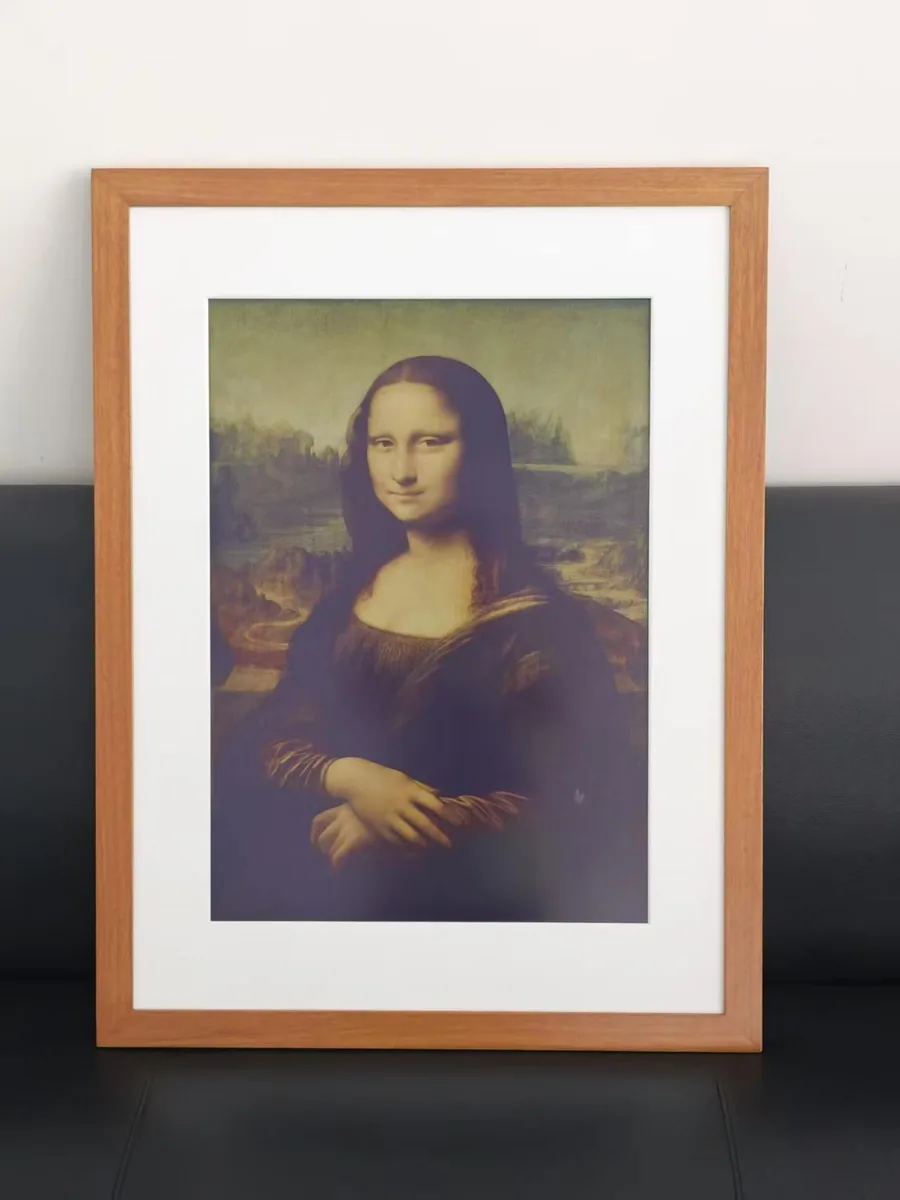
A painting example makes the numbers concrete. The Mona Lisa measures about 77 × 53 cm, a ratio of about 1.45. On an A-series panel (1.41) it can fill the screen by giving up only about 3% of its height. On a 4:3 panel it would lose about 8%. That small difference is why the A-series shape is so well suited to art reproduction.
How to prepare a photo so the frame does not crop it for you
The reliable method is to crop each file to the panel’s exact pixel size before uploading, so the frame has nothing left to decide. Automatic cropping usually takes the centre, which is often not where the subject is.
- Find the panel resolution and orientation. For example, 1600 × 1200 for a 13.3-inch frame hung landscape, or 2160 × 3060 for an A2 frame hung portrait.
- Crop to that ratio. Most phone photo editors offer 4:3, 3:2 and 16:9 presets. For A-series panels, use a custom ratio or pixel size in a desktop editor such as GIMP or Photopea, both of which allow a fixed crop ratio.
- Place the subject, not the centre. Keep faces in the upper third and leave a little space in the direction a person or animal is looking.
- Resize to the exact pixel dimensions. A modern phone photo has far more pixels than any frame needs. The 13.3-inch panel shows 1.9 megapixels; even the A1 40.5-inch panel shows 13.2. Downsizing in a good editor is usually better than leaving the frame to do it.
- Export as JPEG in sRGB. Use high quality. Avoid unusual colour profiles that the frame software may not read.
- Keep the originals. Store uncropped files outside the frame app. You may want a different crop on a different frame later.
Panoramas and very wide photos
A 3:1 panorama on any of these panels either becomes a narrow strip or loses most of its width. Two better answers: choose a section of it that works as a picture on its own, or split it across two or three frames hung side by side. A pair of 4:3 panels hung landscape gives a combined 8:3 area, close to many phone panoramas, at the cost of a visible gap between frames.
Mats, frames and the active area
A mat is cut to the panel’s active area, not its diagonal. Diagonal size is a convenient name; the dimension that matters for framing is the width and height of the area that shows pixels, plus any inactive border around it. If the mat window is larger than the active area, a strip of inactive panel shows. If it is smaller, the mat covers image edges, which is another crop.
When a frame claims compatibility with standard retail frames, check three numbers: the outer panel size, the active area and the depth of the electronics behind it. Ask for them in millimetres. The viewing areas in our table are calculated values; we confirm the final active-area and outer dimensions with each project quotation.
What to check before you buy
- Which shape does the panel use? Compare it with where most of your photos come from: phone, camera or both.
- Can you choose fit or fill per image? One global setting is not enough for a mixed library of paintings and photographs.
- Can you move the crop? Look for pan and zoom before upload, not just a centre crop.
- Does landscape really work? Run the corner-marker test above on the exact model and app version.
- Does the setting survive a restart? Orientation and playlist settings should not revert.
- Are the dimensions published? Ask for active area and outer size in millimetres before ordering mats or frames.
einksmart supplies hardware and content workflows for projects, so we have a commercial interest in this subject. The arithmetic applies to every frame, including ours: test it on the model you intend to buy.
FAQ
Why does my E-Ink frame crop my photos?
Because the panel has a fixed shape and your photo has a different one. To fill the screen, the software must cut the overflow. Crop the file to the panel ratio yourself, or switch to fit mode, to keep control of what is lost.
What aspect ratio should I export for an E-Ink frame?
Export to the panel’s exact pixel size: for example 1600 × 1200 for a 4:3 13.3-inch panel hung landscape, or 2160 × 3060 for an A2 panel hung portrait.
Can I show landscape photos on a portrait E-Ink frame?
Only by fitting them with large bands or losing about half the picture. A landscape 4:3 photo filled onto a portrait panel keeps 56.3%. Hang the frame landscape, if the hardware and software support it, or choose portrait images for that frame.
Does turning the frame sideways rotate the picture?
Not by itself. The pixel grid does not change. The frame needs an orientation sensor or setting, and the app must rotate each image. Test it before relying on it.
Is fit mode with white bands acceptable on ePaper?
Usually yes. Colour ePaper white is paper-white, so light bands look like a print margin or mat rather than television letterboxing. It is often the best choice for paintings and posters.
Do I need high-resolution photos for an E-Ink frame?
Less than you might expect. A 13.3-inch panel at 1600 × 1200 shows 1.9 megapixels, and even a 40.5-inch A1 panel shows 13.2 megapixels. Composition and crop matter more than extra pixels.
Next step
Large E-Ink displays: every size compared
From 7.3-inch frames to 75-inch panels, with the formats most buyers never find.
Read Insight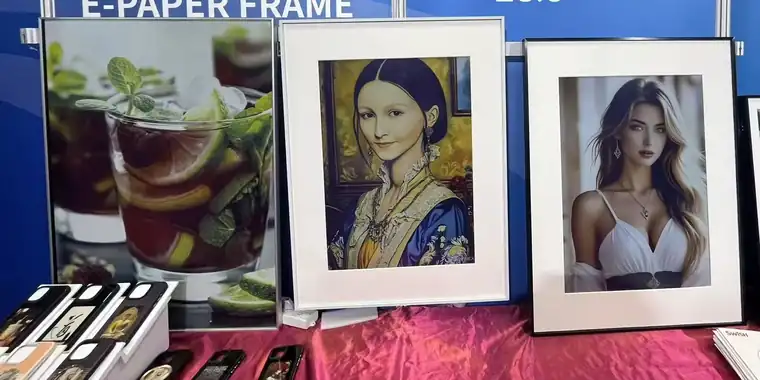
What colour E-Ink looks like
Dithering, paper-white and room light: what to expect before it is on your wall.
Read Insight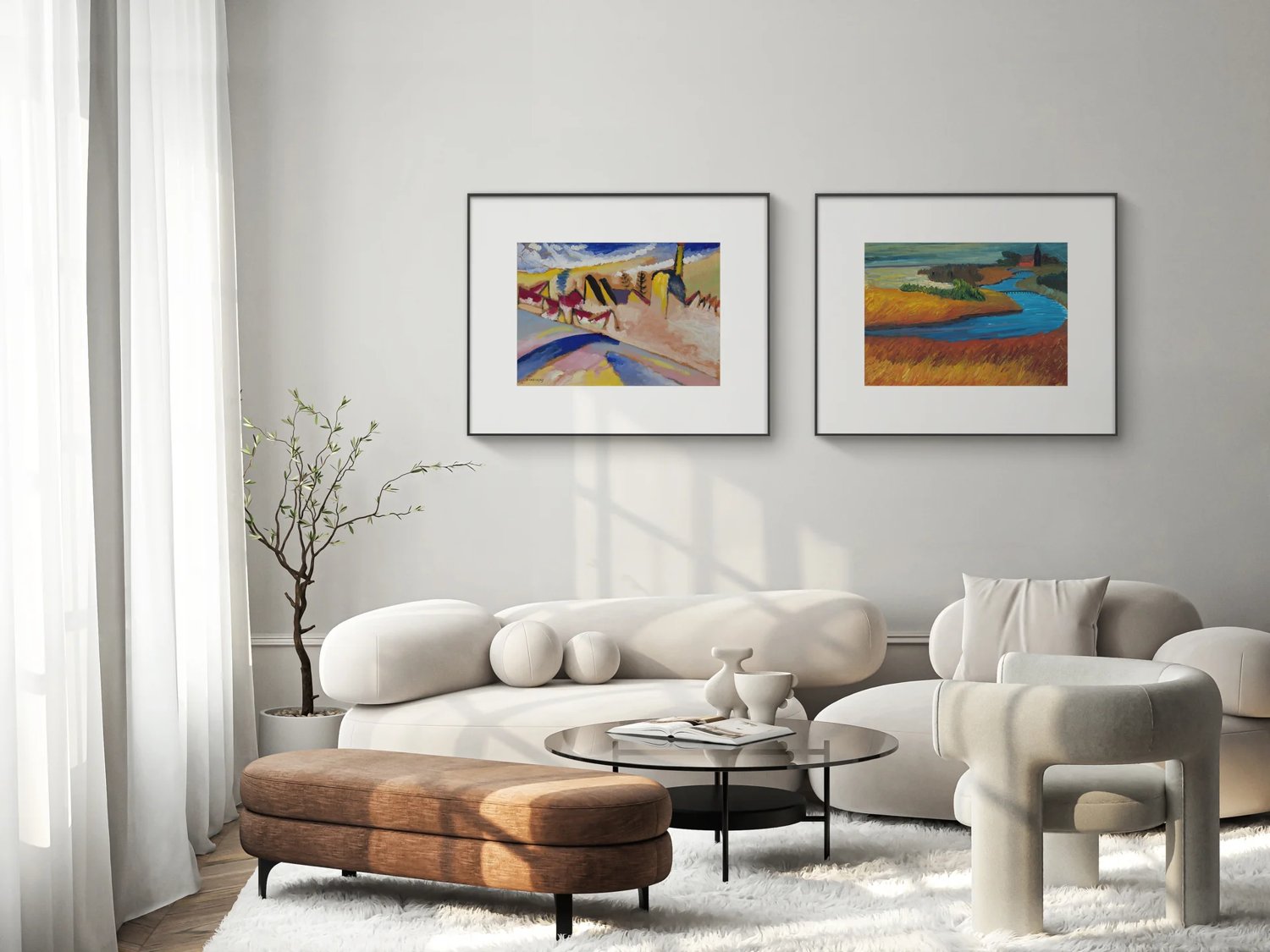
E-Ink picture frames explained
How reflective frames work, why they look like paper, and what to check before buying.
Read Insight